You press the power button. Nothing happens. No sound, no light, no screen. It is one of the most frustrating things you can face on a busy day. The good news is that most of the time, the reason your computer won’t turn on is something simple. You do not always need a repair shop. In many cases, you can fix it yourself at home with a little patience.
This guide will walk you through the most common causes and what you can do about each one. So before you panic, take a breath and keep reading.
Start With the Basics
It sounds too simple, but always start here. Many people skip this step and waste hours looking for a bigger problem that was never there.
- Check if the power cable is fully plugged in at both ends
- Make sure the power strip or wall outlet is actually working
- Look for any loose connections at the back of your PC or laptop charger port
If you are using a power strip, try plugging the computer directly into the wall. Sometimes the strip is the problem, not the computer. Also, check if the outlet works by plugging in a lamp or phone charger. These small checks can save you a lot of time.
The Battery Could Be the Problem
If you have a laptop and your computer won’t turn on, the battery is one of the first things to check. Over time, laptop batteries wear out. They stop holding a charge. Sometimes they fail completely without much warning.
Try this: remove the battery if your laptop allows it, then plug in the charger directly and try to power it on. If it starts up, your battery has likely failed and needs to be replaced. Replacement batteries are not very expensive and are easy to find online for most laptop models.
For desktop computers, there is a small battery on the motherboard called the CMOS battery. It is about the size of a coin. When it dies, your PC may not start properly. Replacing it is straightforward and costs very little.
Overheating Can Cause a Shutdown
Computers have built-in protection. When they get too hot, they shut down on their own to avoid damage. So if your computer was running fine and then suddenly turned off and now will not start, heat may be the reason.
- Dust buildup inside the case blocks airflow
- Blocked vents on laptops trap heat inside
- Old or dry thermal paste on the processor causes high temperatures
First, let the computer sit for 20 to 30 minutes to cool down. Then try turning it on again. If it works for a while and shuts off again, you have a heat problem. Clean the dust from the vents using a can of compressed air. For desktops, open the case and clean the fans carefully. This alone fixes the problem for many people.
Check the Monitor, Not Just the Computer
Here is something many people miss. Your computer might actually be running fine. The monitor might be the issue. If the fans spin and you hear sounds but see nothing on screen, do not assume the computer is broken.
Try these steps. First, check that the monitor cable is plugged in at both ends. Second, make sure the monitor is turned on and set to the right input source. Third, try a different cable or a different monitor if you have one available. Sometimes the display gives up while the computer keeps running perfectly.
Power Supply Problems in Desktop PCs
If your desktop computer won’t turn on and makes no sound at all when you press the button, the power supply unit may have failed. The PSU is the box inside your computer that converts electricity from the wall into power your components can use. When it fails, nothing works.
Signs of a failed power supply include:
- No lights, no fans, no sound when pressing power
- A burning smell near the back of the PC
- The computer worked during a thunderstorm and stopped after
You can test a PSU with a cheap multimeter or by swapping in a known working one. If the PSU is the problem, replacing it is not too hard for someone with basic tech skills. However, if you are not comfortable working inside a PC, a technician can do it quickly and affordably.
RAM and Hardware Connections
Sometimes a loose piece of hardware inside the computer causes it to refuse to start. This is more common than most people realize, especially in older machines or ones that have been moved around a lot.
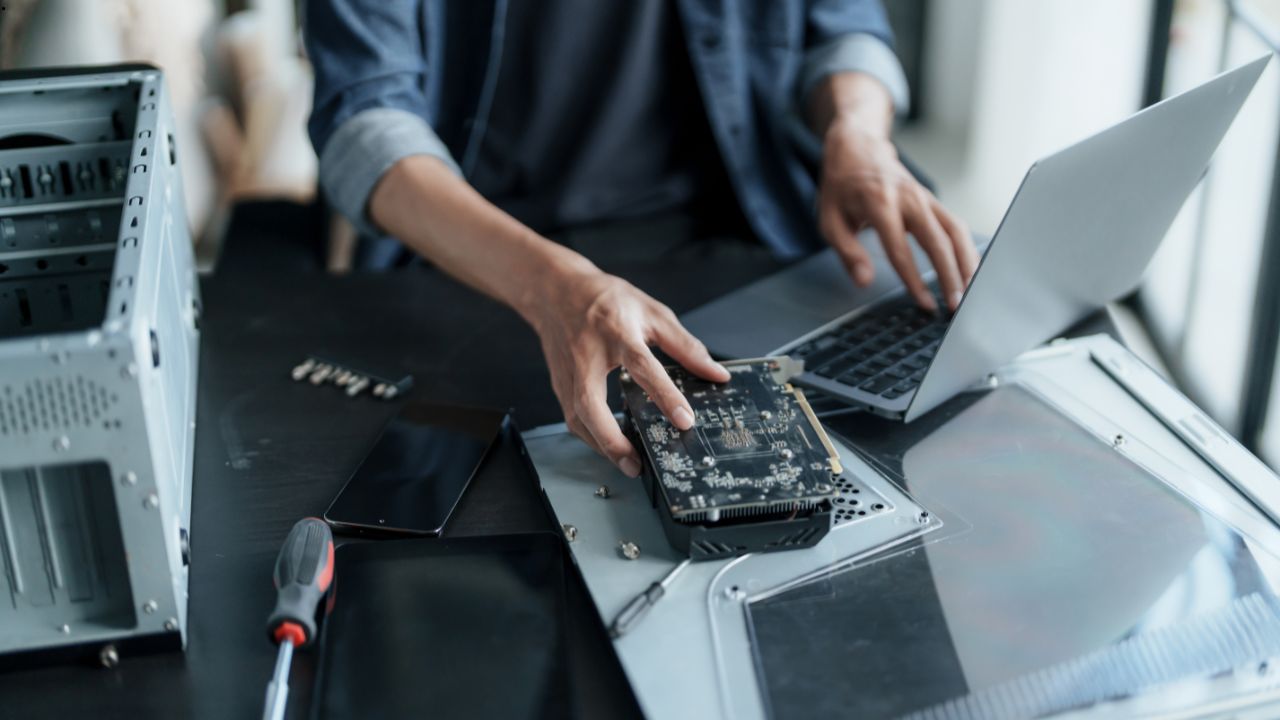
RAM sticks, graphics cards, and other components can shift slightly in their slots. When they lose full contact, the computer may not boot at all. Try opening your desktop case and gently pressing each component back into its slot. For RAM, remove the sticks completely and push them back in firmly until you hear them click. This simple fix works more often than you would expect.
When It Is a Software or Corrupted System Issue
Sometimes the computer turns on but gets stuck. You see the manufacturer logo and then nothing. Or you get an error message and the machine restarts in a loop. In this case, the hardware is likely fine. Instead, the operating system has a problem.
For Windows users, try booting into Safe Mode. Hold the Shift key while clicking Restart from the login screen. From there you can run a startup repair. For serious issues, you may need to reinstall Windows. As long as your hard drive is working, your files can often be recovered before reinstalling.
Mac users can hold Command and R during startup to enter Recovery Mode. From there, you can repair the disk or reinstall macOS without losing your data.
When to Call a Professional
You have tried everything above and your computer still will not start. At this point, it is a good idea to take it to a repair shop. The problem could be a failed motherboard, a dead processor, or a damaged hard drive. These repairs need proper tools and experience.
That said, do not give up on your data. Even if the computer itself is beyond saving, a technician can often pull your files off the hard drive and transfer them to a new machine or storage device.
Final Thoughts
A computer that will not start is stressful, but it is rarely a mystery. Most of the time, the cause is something simple. Start with the power cable. Then move to the battery, the heat, and the hardware connections. Work through each step calmly and you will often find the answer faster than you think.
If your computer won’t turn on no matter what you try, do not wait too long before getting help. The sooner you act, the better the chances of saving both your machine and your data.