
While working on Google Docs to create content or for any other purpose, keeping material attractive and professional is important. Various strategies are used to make it possible. The very important one is to add a page number on Google Docs. Besides looking at authentic work, it helps users to find a page number easily. But, the question is how to add page number in Google Docs. The method is easy and counts only a few steps to make it possible.
This article explores the method of adding page numbers in Google Docs. Stay connected till the end.
Method
The step-by-step process is given below.
Step:1
Open the page in Google Docs where you want to add a page number or if you want to add it sequentially, start it from page 1.
Step:2
On the upper left side of the page, there is an option of Insert, click on it.

Step:3
It opens multiple options, when you scroll down further, there is an option for Page Numbers, and next to it is a choice of selection like:
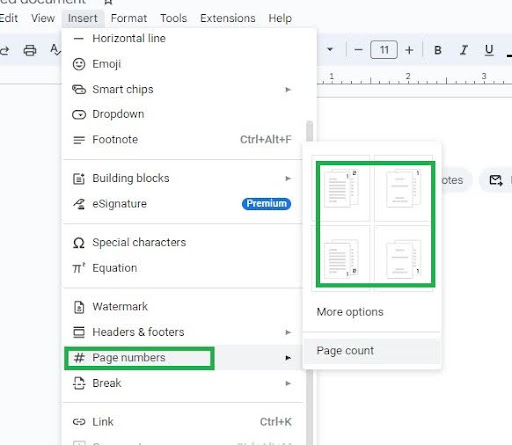
Before proceeding further, it is important to recognize essential pages in Google Docs. If there is an unnecessary page and you want to skip it in counting for numbering then learn, how to delete a page in Google Docs.
Step:4
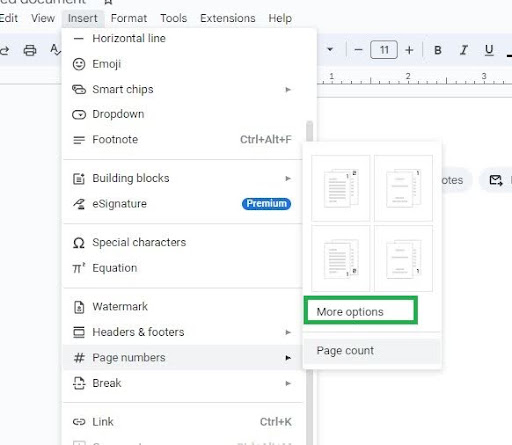
If you want to add the number at the footer or header then click on More Options.
Step:5
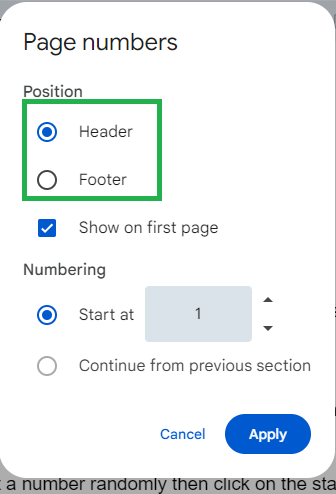
It opens the option to add a number at the footer or header, select the option that meets your needs.
Step:6
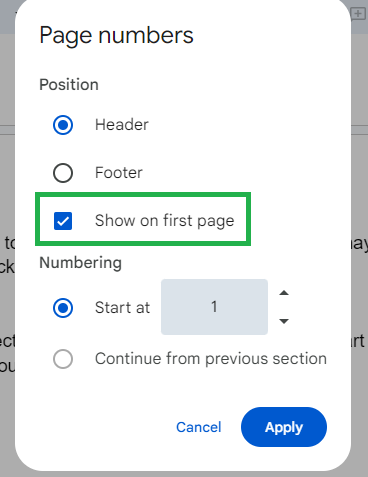
If you do not want to add a number on the first page which may be a title page then, Uncheck the given option.
Step:7
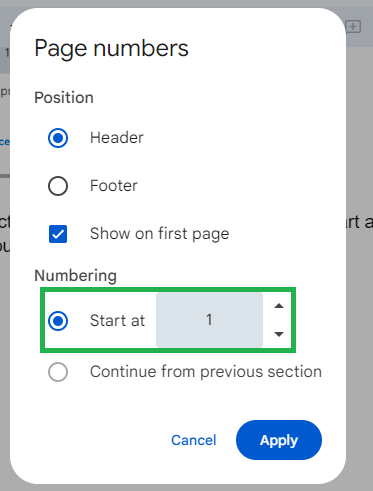
If you want to select a number randomly then click on the Start and select the number that you want to add like 4, 8, 1, etc.
Step:8
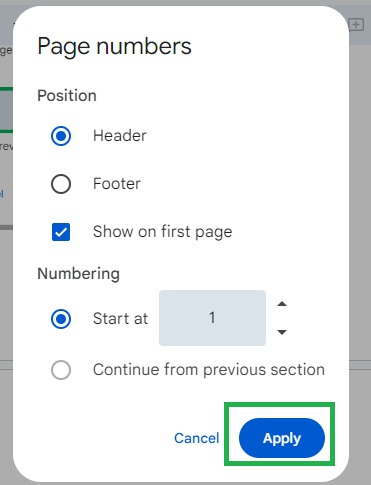
At the last click on the Apply option to save the Changes.
Final words
That was all for how to add page numbers in Google Docs. The method is straightforward and can be carried out with no extra aid. If you are encountering any issue related to the article, then don’t hesitate to type in our comment section.

